Internal Mentions
- Get Started
- Troubleshooting and FAQ
- Release Notes
- AI Agents
- Patient Channel
- Triggers
- Technical Specifications
- Patient Facesheet
- Insights & Analytics
- Conversation Flows
- Campaigns
- SMS Basics
- Inbox
- Lines & Resources Requests
- Lines, Events, Resources
- Referrals
- Add-Ons
- Users and Groups
- Platform Settings and Configuration
- Self-Rescheduling
- Recalls
- Artera Harmony Federal Edition
- Marketplace
Table of Contents
Internal Mentions OverviewAutomatic Internal MentionsManual Internal MentionsViewing your Internal Mentions"Activity" ViewInternal Mentions | AccessResolving Internal MentionsExternal User Notifications
Internal Mentions simplify collaboration across Artera, bringing together all relevant parties and ensuring action items make it into the hands of the correct individuals.
You can tag individual users, User Groups, or Enterprise User Groups when creating an Internal Mention. The tagged user(s) are automatically granted temporary permissions to the Patient Channel where the Internal Mention was created.
Internal Mentions Overview
Internal Mentions can be created automatically or manually in Artera.
Automatic Internal Mentions
- Inbound Message Triggers can be used to automatically trigger an Internal Mention. A common example of this is creating an Internal Mention tagging a user or User Group when the patient texts in a keyword such as “billing.” Click here to learn more.
- Conversation Flows Actions can create Internal Mentions for Enterprise Users or Enterprise User Groups based on the patient's response. Click here to learn more.
Manual Internal Mentions
You can also create Internal Mentions directly within a Patient Channel.
Creating an Internal Mention
- Open the Patient Channel where you would like to create the Internal Mention.
-
Select @ Mention in the communication box.

-
Insert the "@" symbol to tag a User, User Group, or Enterprise Group. Once you insert the “@” symbol, you will receive suggestions about who you might be trying to mention.
 NOTE: A user will see an alert if they type an "@" followed by text (no spaces) directly into the "text" field rather than the "@ Mention" field.
-
OPTIONAL: Type a message to the user or User Group you are mentioning. You can use Smart Phrases and Quick Responses, as needed. This message will not be visible to the patient.

-
Select Send Internal. This will automatically do three things:
-
Update the total count of unresolved Internal Mentions in the "Unresolved Mentions by Practice Tile" in the Homepage.

-
Set the Patient Channel to "Needs Action" in the "All Messages" view. This status is identified with a red triangle featuring an exclamation mark. Additionally, an Internal Mention will trigger a red "@" symbol on the Patient Channel.
NOTE: Patient Channels marked as "Needs Action" will appear in the "All Messages" view when that status is filtered for.
-
In the tagged user's "Activity" view, a new Internal Mention will display in the "Unresolved" section.

-
In the tagged user's "Activity" view, a new Internal Mention will display in the "Unresolved" section.
-
Update the total count of unresolved Internal Mentions in the "Unresolved Mentions by Practice Tile" in the Homepage.
Viewing Your Internal Mentions
While users can access Internal Mentions from all views in the Inbox, the "Activity" view provides the most useful information.
"Activity" View
The "Activity" view provides a complete overview of your Internal Mentions, both direct (@ Me) and User Group (@ Groups) mentions. It displays your unresolved and resolved Internal Mentions, including a total count of your unresolved Internal Mentions in the navigation bar. This number updates dynamically as new Internal Mentions are created for you or existing ones are resolved.
NOTE: The "Activity" View only displays Internal Mentions where you are the user tagged. It does not display the Internal Mentions that you created for other users. 
By default, the "Activity" view displays your direct, unresolved Internal Mentions in the @ Me tab. This is your immediate to-do list for managing your direct Internal Mentions.

To view your unresolved User Group mentions, select the @ Groups tab from this view. This displays all Internal Mentions where a User Group you are a member of has been tagged.
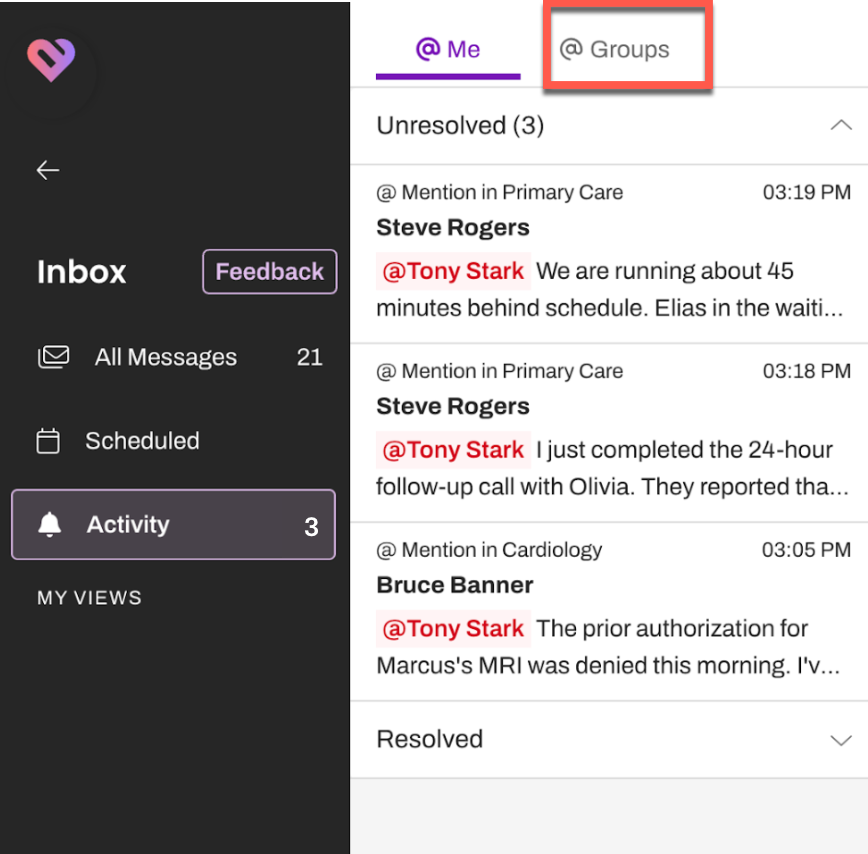 Each Internal Mention card displays the Practice the Internal Mention was added in, the user who created the Internal Mention, the line associated with the Internal Mention, and up to a two-line message preview (if a message was included by the creator of the Internal Mention).
As soon as an Internal Mention is resolved, it will automatically move from the "Unresolved" section to the "Resolved" section in this view.
NOTE: The "Resolved" section displays your resolved Internal Mentions from the past 30 days.
Filtering for Internal Mentions
Use the Filters Panel in the "All Messages" and "Scheduled" views to filter for "@ Internal Mentions"

Internal Mentions | Access
When you tag a user in a Patient Channel with an Internal Mention, they receive temporary access to that Patient Channel. This is true even if they do not otherwise have permission to view it. Keep these key distinctions in mind:
- The mentioned user or User Group must be a member of the Practice where the Patient Channel is located.
- Exception: If you tag an Enterprise User Group, its members receive temporary access, even if they are not part of the Practice.
- The user does not need to have access to the specific line being used. The Internal Mention itself grants them temporary access to the Patient Channel.
- Individual users and User Group members will retain access to the Patient Channel for one day after the Internal Mention is resolved.
- Enterprise User Group members will retain access to the Patient Channel for seven days after the Internal Mention is resolved.
Resolving Internal Mentions
When using Internal Mentions, it is important to resolve the Internal Mentions as they are worked. When a Practice accumulates unresolved mentions, issues with loading can occur within Artera. If you have many unresolved mentions, please go through and resolve them. There are two ways to resolve Internal Mentions in Artera: messaging the patient or manually resolving the Internal Mention.
Messaging the Patient
Whether you are tagged individually or as a group member, messaging the patient will resolve the Internal Mention. If you are part of the User Group tagged, messaging the patient will resolve the Internal Mention for the entire User Group.
If a Patient Channel has multiple outstanding Internal Mentions for different users, sending the patient a message will only resolve your Internal Mention(s), unless you are an Enterprise User.
NOTE: If an Enterprise User messages a patient with multiple unresolved Internal Mentions, all Internal Mentions will be automatically resolved even if the Enterprise User does not belong to the User Group or is not the user who was mentioned.
Manually Resolving the Internal Mention
Use the (...) Actions menu next to the Internal Mention in the Patient Channel and select Resolve Mention. 
You can also resolve Internal Mentions by selecting the (...) Actions menu in the top-right corner of the Patient Channel and choosing Resolve My Mentions or Resolve All Mentions if there are also User Groups that you are a part of that are mentioned in the Patient Channel.
If a Patient Channel has multiple outstanding Internal Mentions for different users, Managers and Staff Users are only able to manually resolve the Internal Mentions they are tagged in or that they created themselves. Enterprise Users will be able to manually resolve any open Mentions within the Patient Channel.
External User Notifications
Depending on their user type and notification settings, Artera users will be notified that they have been tagged in a Patient Channel.
When will the notification be sent? |
Overnight (Email) |
Instantly (Email) |
Instantly (Text) |
What will the notification look like? |
 |
 |
 |
| Who will receive this notification? |
|
|
|