{eventInstructions} Smart Phrase
- Get Started
- Troubleshooting and FAQ
- Release Notes
- AI Agents
- Patient Channel
- Triggers
- Technical Specifications
- Patient Facesheet
- Insights & Analytics
- Conversation Flows
- Campaigns
- SMS Basics
- Inbox
- Lines & Resources Requests
- Lines, Events, Resources
- Referrals
- Add-Ons
- Users and Groups
- Platform Settings and Configuration
- Self-Rescheduling
- Recalls
- Artera Harmony Federal Edition
- Marketplace
Table of Contents
Benefits of Event InstructionsCreate Event InstructionsSample Use of Event Instructions Smart Phrase{eventInstructions} Smart Phrase: Leading PracticesFAQsLet’s review how to add instructions to Events. These instructions are populated in messages to patients by using the {eventInstructions} Smart Phrase.
Benefits of Event Instructions
When configuring Triggers, use Smart Phrases to personalize messages and streamline your workflows. This is particularly effective for appointment outreach.
Instead of building separate Triggers for every appointment type, you can use the {eventInstructions} Smart Phrase. This dynamically pulls the specific guidelines or instructions associated with that appointment's Event Type directly from your EMR.
Create Event Instructions
Events in Artera are created based on the Appointment Types scheduled in your EMR (Events can also be created through one-time uploads, though this usually occurs when you are going live with Artera).
When an Event is added in Artera, you can edit the Event to include its instructions. Some Events may require a patient to arrive 15 minutes early, while others may require a patient to fast for specified amount of time prior to the appointment.
Let’s review how to add or edit Event instructions:
-
Navigate to Practice Settings and select Events.

-
Select the Event's (...) Actions menu and choose Edit Event.
NOTE: Only users with the "Events" permission can access this. Typically, these are Manager and/or Enterprise Users.
-
Here, add your Instructions. You can also make changes to the Event Name or Modality, as needed.

-
The Event instructions can be included in automated and manual messaging when using the {eventInstructions} Smart Phrase.

- In alignment with SMS Character Limits, try to keep instructions as brief as possible. Messages over 1,600 characters will fail to send.
- Once instructions have been added, select Save Event to update the Event in Artera.
Sample Use of Event Instructions Smart Phrase
In the following example, the Event that this patient is scheduled for, Eye Exam, has the following instructions saved in Artera:
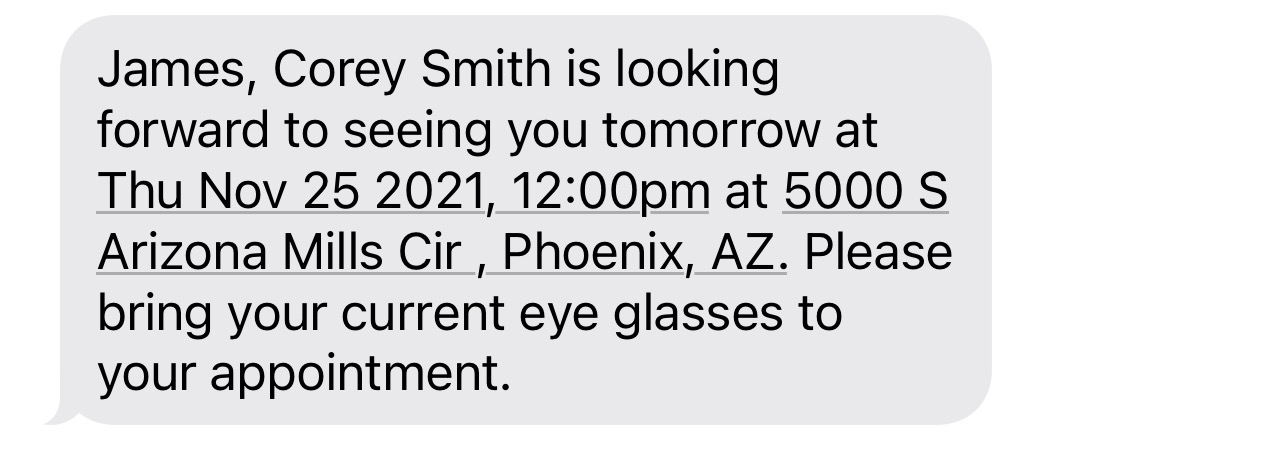
Remember: Event instructions do not include the ability to add translations and do not respect patient language preferences.
{eventInstructions} Smart Phrase: Leading Practices
Use the {eventInstructions} Smart Phrase to reduce the amount of custom Appointment Triggers you need to create. By leveraging Event instructions, you can allow for a greater level of customization and specificity with fewer distinct Triggers.
Events instructions should be used for information specific to that Event. If it is standard policy across all Events to ask patients to arrive 15 minutes early, it is more efficient to use {eventArrivalTime15}. It is a standard Smart Phrase that returns arrival time 15 minutes before appointment time. In the same way, if the information is the same for everyone who visits a Location — parking, which entrance to use, where to check in — save it as Location Instructions and use the {eventLocationInstructions} Smart Phrase instead. Event Instructions are for the appointment. Location Instructions are for the place.
FAQs
What is the difference between Event Instructions and Location Instructions?
Event Instructions are saved on the Event, which is the appointment type, and are returned by the {eventInstructions} Smart Phrase. Use them for anything specific to that kind of appointment, such as fasting or bringing paperwork.
Location Instructions are saved on the Location and are returned by the {eventLocationInstructions} Smart Phrase. Use them for anything true of the place itself, such as parking or where to check in. You can use both Smart Phrases in the same message.
Can I enter instructions on each Event individually? Will this impact my Triggers?
Yes. We recommend adding your instructions to the Event prior to adding the Smart Phrase to your Trigger(s). There is no impact to your Triggers until the Smart Phrase of {eventInstructions} is added.
Is there a bulk method available to add Event instructions into Artera? Or do I need to add them one at a time?
Artera can complete a bulk upload of your Event instructions. To complete this process, please work with your Customer Success Representative or submit a Support Case. Artera will provide you with a spreadsheet where you can complete the Event instructions. Please specify which Practice(s) you would like to add instructions for.
What is the patient experience if a patient receives a message including the {eventInstructions} Smart Phrase but the Event Type they are scheduled for does not have instructions associated with it?
The {eventInstructions} Smart Phrase will not populate with information for the patient. Within the Patient Channel, the outbound message including this Smart Phrase will display without any Event instructions, as depicted below: