{eventConfirmText} Customization and Behavior
- Get Started
- Troubleshooting and FAQ
- Release Notes
- AI Agents
- Patient Channel
- Triggers
- Technical Specifications
- Patient Facesheet
- Insights & Analytics
- Conversation Flows
- Campaigns
- SMS Basics
- Inbox
- Lines & Resources Requests
- Lines, Events, Resources
- Referrals
- Add-Ons
- Users and Groups
- Platform Settings and Configuration
- Self-Rescheduling
- Recalls
- Artera Harmony Federal Edition
- Marketplace
Table of Contents
Customizing the {eventConfirmText} Smart PhraseDefault MessageCustomizing {eventConfirmText}{eventConfirmText}, IVR Calls, and TranslationsThe {eventConfirmText} Smart Phrase is an integral part of Artera's Appointment Reminder workflows. This Smart Phrase allows patients to confirm their upcoming appointment or request to cancel or reschedule it. The patient response to the Smart Phrase automatically makes the updates within Artera and your EMR (depending on how your integration is configured).
When patients receive a reminder with the {eventConfirmText} Smart Phrase, they can tap the appointment date to add it to their device's calendar.
NOTE: This functionality varies by device and may not work for all device types.
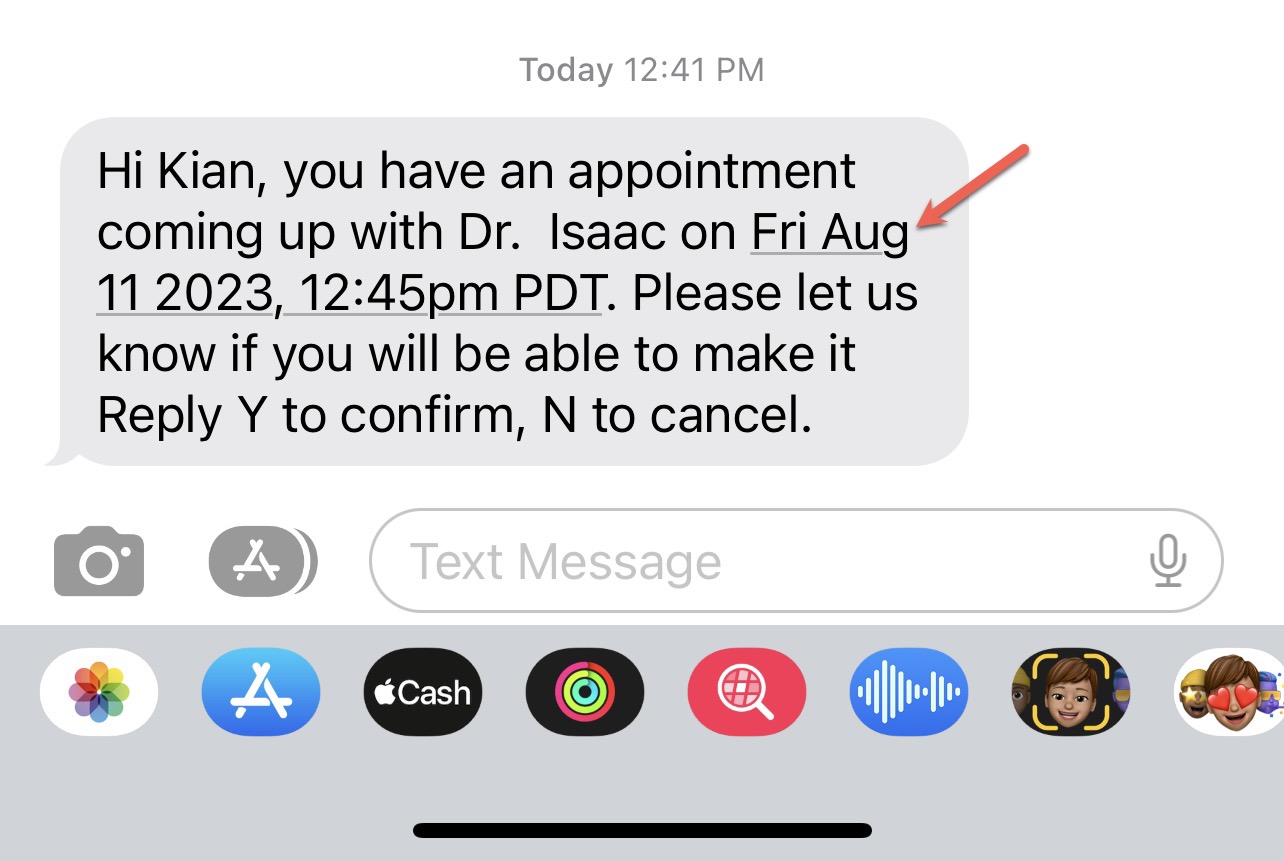
To learn more about appointment confirmations, click here.
Customizing the {eventConfirmText} Smart Phrase
You can customize how this Smart Phrase appears in text messages, including adding translations, via your Default or Practice Settings.
NOTE: Artera only recognizes the following keywords or phrases for confirming, cancelling, or rescheduling an appointment. If you decide to customize the {eventConfirmText} Smart Phrase, direct patients to respond with the Artera recognized keywords or phrases in order to successfully set their Appointment Status.
Confirmation Keywords |
Cancellation Keywords |
Reschedule Keywords |
|
|
|
Default Message
If you choose not to add customizations, the {eventConfirmText} Smart Phrase will default to “Reply Y to confirm, N to cancel” in the patient’s preferred language when delivered to them via text.
Customizing {eventConfirmText}
- For Default-level customization, navigate to the Enterprise Settings menu and select Default Settings. For Practice-level customization, navigate to the Practice Settings menu and select Practice Settings.
- Scroll to the Customize {eventConfirmText} Smart Phrase setting.
-
Enter your customization. Typically, we recommend using a single letter (Y, N) to represent the desired appointment action.

- Do not ask the patient to text in “cancel” as a response option. Doing so will automatically opt the patient out of receiving texts from the line they texted into. See the "Cancel Keyword" section below for more information.
-
Tip: If you are supporting "R" for Reschedule, ensure the Reschedule Appointment status is selected in the Patient Appointment Status Options Default Setting (if supporting Reschedule across the organization) or Practice Setting (if supporting Reschedule for your specific Practice).

-
If your organization supports additional languages, select the EN button to search for and select translations. Ensure that you add translations for each language supported in your Appointment Triggers. These should be a 1:1 match.
Tip: Artera allows Spanish speakers to text in "S" and this will confirm the appointment, just as if they sent in "Y".
- Ensure that you verify the translation with a proficient speaker and check the box to confirm that action has occurred.
- Click here to learn more about adding Translations.
- Select Save in the top-right corner of the page when done.
{eventConfirmText}, IVR Calls, and Translations
You can place calls in all 23 supported languages using the same setup process. However, the {eventConfirmText} Smart Phrase is only compatible with English, Spanish, and Russian via voice. If a call is configured in any other language (such as Danish), the initial part of the message will be made in Danish, with the {eventConfirmText} portion made in English.
Example
"James, vil du venligst bekræfte dit besøg på 04/13/2026 12:05pm med Dr. James Corey? To confirm your visit please press 1, to cancel your visit please press 5, to repeat this message please press 9."