Initiate Your Conversation Flow
- Get Started
- Troubleshooting and FAQ
- Release Notes
- AI Agents
- Patient Channel
- Triggers
- Technical Specifications
- Patient Facesheet
- Insights & Analytics
- Conversation Flows
- Campaigns
- SMS Basics
- Inbox
- Lines & Resources Requests
- Lines, Events, Resources
- Referrals
- Add-Ons
- Users and Groups
- Platform Settings and Configuration
- Self-Rescheduling
- Recalls
- Artera Harmony Federal Edition
- Marketplace
Table of Contents
Locate the Smart PhraseAfter-Hours Auto-Response Quick Responses TriggersCampaignsBulk MessagingManual MessagesUse your Conversation Flow's Smart Phrase in any patient communication method including Triggers, Campaigns, Bulk Messaging, Quick Responses, and/or manual messaging. Conversation Flow Events and Referral-based Smart Phrases can be successfully used within Campaigns.
Locate the Smart Phrase
The Smart Phrase for your Conversation Flow is located on the Conversation Flows page.

After-Hours Auto-Response
You can include your Conversation Flow's Smart Phrase in your Practice's After-Hours Auto-Response. Click here to learn more.

Quick Responses
You can include your Conversation Flow's Smart Phrase in one or more Quick Response templates. Quick Responses can be used in Manual Messaging or Bulk Messaging.
NOTE: To send the Conversation Flow securely, make sure the Quick Response is set to Secured. Click here for information on securing messages.

Triggers
There are two ways to send a Conversation Flow from a Trigger.
The first is to connect the Trigger to the Conversation Flow directly. On the Trigger's message step (step four), set Connect Trigger to Conversation Flow to Yes, then choose your Conversation Flow from the drop-down menu on the Text tab, the Call tab, or both. The Conversation Flow becomes the Trigger's message.
The second is to enter the Smart Phrase yourself. Leave Connect Trigger to Conversation Flow set to No and include your Conversation Flow's Smart Phrase within two curly brackets {} in place of a message. Enter the Smart Phrase in the text and/or call section.

Use the drop-down method when the Conversation Flow is the whole message. Manually enter the Conversation Flow's Smart Phrase when you need message text around the Conversation Flow. Email is not available with the drop-down option as Conversation Flows are delivered by text and call only.
If you are entering the Smart Phrase yourself and you have included English and Spanish Translations within your Conversation Flow, add the Smart Phrase into the Spanish Translation box as well (within the text and/or call sections). Tip: Make sure your translation is following the same security setting as the English version (Secure or Unsecure). You do not need to do this when you use the Connect Trigger to Conversation Flow drop-down, which handles English and Spanish for you if your Conversation Flow was configured for both.
When the patient receives the message, it will be the first (root) message in the Conversation Flow. As the patient responds, the next message in the sequence will be sent until the Conversation Flow completes or is terminated.
NOTE: To send the Conversation Flow securely, make sure the Trigger is set to Secured. Click here for information on securing messages.
Campaigns
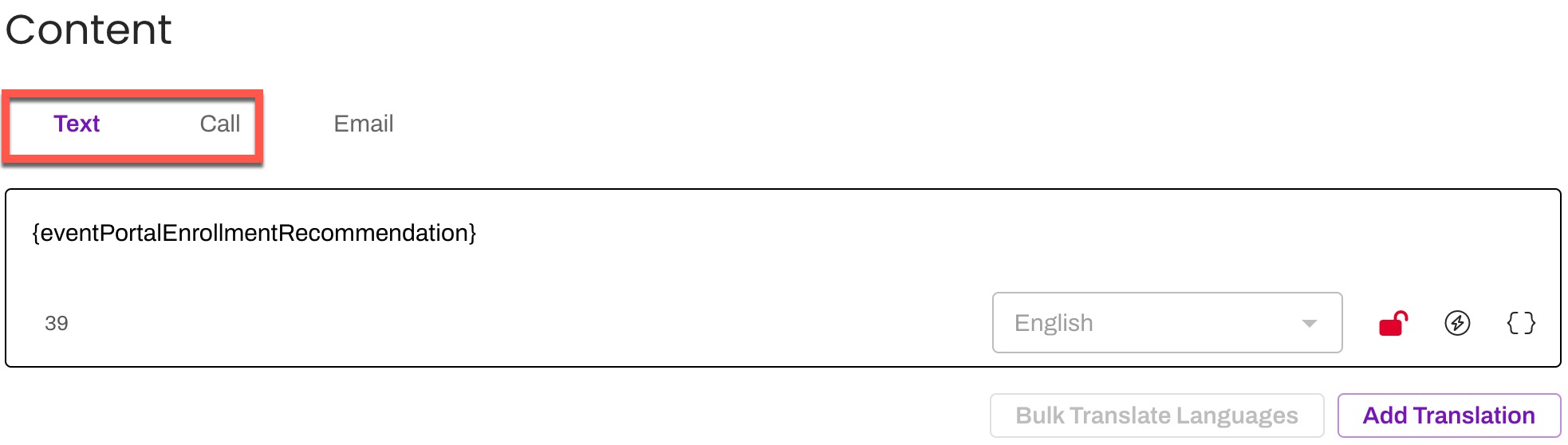
Use Campaigns to send your Conversation Flow by including your Conversation Flow's Smart Phrase in place of a message. Depending on the Conversation type, enter the Smart Phrase in the text and/or call section.
If you have included English and Spanish Translations within your Conversation Flow, ensure that you add the Smart Phrase into the Spanish Translation box (within the text and/or call sections). Tip: Make sure your translation is following the same security setting as the English version (Secure or Unsecure).
NOTE: To send the Conversation Flow securely, make sure the Campaign is set to send as secured. Click here for information on securing messages.
Bulk Messaging
Use Bulk Messages to send your Conversation Flow by including your Conversation Flow's Smart Phrase in place of a message. Depending on the Conversation type, enter the Smart Phrase in the text and/or call section.
If you have included English and Spanish Translations within your Conversation Flow, ensure that you add the Smart Phrase into the Spanish Translation box (within the text and/or call sections). Tip: Make sure your translation is following the same security setting as the English version (Secure or Unsecure).
Bulk Messages will only send one per patient and will attempt to send the text first by default and then phone call (if the phone number is not text-enabled).

NOTE: To send the Conversation Flow securely, make sure the Bulk Message is set to Secured. Click here for information on securing messages.
Manual Messages
You can manually start a Conversation Flow from the Patient Channel by sending the Conversation Flow's Smart Phrase in place of a message directly to the patient. Depending on the Conversation type, enter the Smart Phrase in the text and/or call tab of the patient's communication box in their Patient Channel.

NOTE: To send the Conversation Flow securely, make sure the manual message to the patient is set to Secured. Click here for information on securing messages.