Merged Messages
- Get Started
- Troubleshooting and FAQ
- Release Notes
- AI Agents
- Patient Channel
- Triggers
- Technical Specifications
- Patient Facesheet
- Insights & Analytics
- Conversation Flows
- Campaigns
- SMS Basics
- Inbox
- Lines & Resources Requests
- Lines, Events, Resources
- Referrals
- Add-Ons
- Users and Groups
- Platform Settings and Configuration
- Self-Rescheduling
- Recalls
- Artera Harmony Federal Edition
- Marketplace
Table of Contents
What are Merged Messages? Enable Merged Messages for Triggers Merged Messaging Behavior: Appointment CreatedExpected Behaviors of Merged MessagesLeading Practices for Using Merged MessagesTo prevent patients from receiving multiple, identical notifications for same-day appointments at the same Practice, Artera can consolidate them into a single merged message. This article explains how the Merged Messages Trigger setting streamlines text, call, and email communications into one cohesive message.
What are Merged Messages?
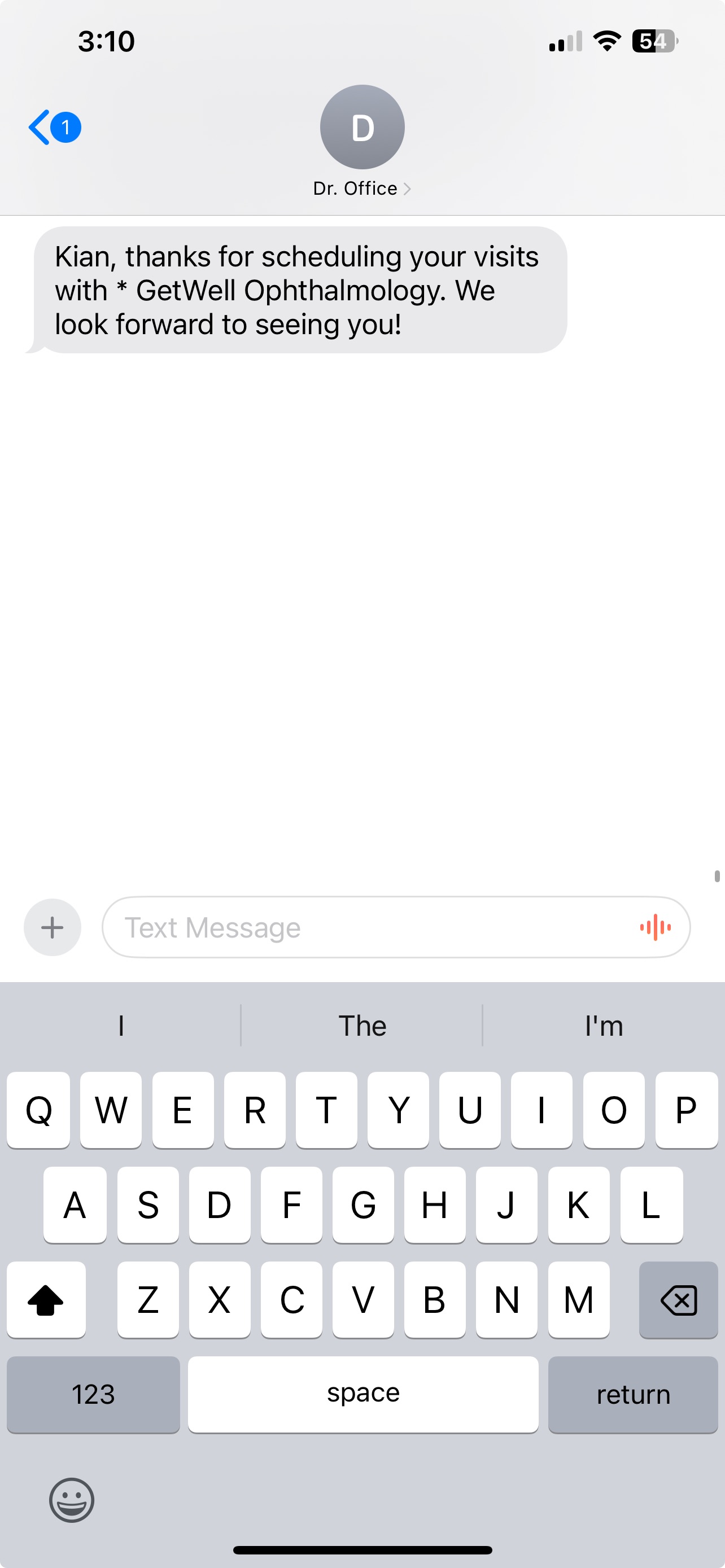
When creating or editing a Trigger, you have the option to enable Merged Messages. When patients have multiple same-day appointments within the same Practice, you can configure the Trigger so that the patient receives a single message instead of one for each appointment. This reduces the volume of redundant messages sent and creates a better patient experience.
Examples of Merged Messages
When writing Merged Message content for Triggers, we recommend closely mirroring the content used for the non-merged version of the Trigger message. This provides a consistent patient experience. Slight variations are needed to accommodate multiple events in a single message.
Enable Merged Messages for Triggers
Creating a New Trigger
Click here for instructions on configuring Triggers. Before reviewing your Trigger, you will be prompted to decide if you would like to merge messages.

Select Yes to enable Merge Messages. Then, enter the merged text, call, and email as appropriate.
NOTE: Merged Messages are not available when Connect Trigger to Conversation Flow is set to Yes. In that mode the Conversation Flow is the message, so there is no message template to merge. To use Merged Messages, leave Connect Trigger to Conversation Flow set to No.
Once enabled, Merged Messages apply to all delivery methods configured for the Trigger (text, call, and email). To avoid configuration errors, ensure that your merged version includes the same message types as the non-merged version. For example, if the original Trigger includes both text and voice components, the merged setup must also include both.
As illustrated in the example, we recommend using Smart Phrases within your Merged Messages. These phrases will automatically populate with details from one of the patient's scheduled visits. The specific appointment selected depends on the message's send time relative to the scheduled appointment times. See the Expected Behaviors and Mechanics section below for more information on how Smart Phrases behave when messages are merged.
NOTE: If your original Trigger message included translations, you can include those translations into the Merged Message.
Editing a Trigger
On the Outbound Triggers page, locate the Trigger you want to edit. Select its three dot (...) Actions menu, then choose Edit.

Select Continue until you reach step 4 of the Trigger to add a Merged Message. Then, select Yes in the Merge Message section.

Enter the desired Merged Message and add translations, as needed.
NOTE: To add a Merged Message to a Trigger that is on, you also need the Triggers Activation permission. If you have the Triggers permission but not Triggers Activation, ask someone who has it to make the change for you. Click here to learn about user permissions.
Merged Messaging Behavior: Appointment Created
Appointment Triggers configured to merge and trigger based on Appointment Created will only merge if all of the patient's appointments are created within the same offset window.
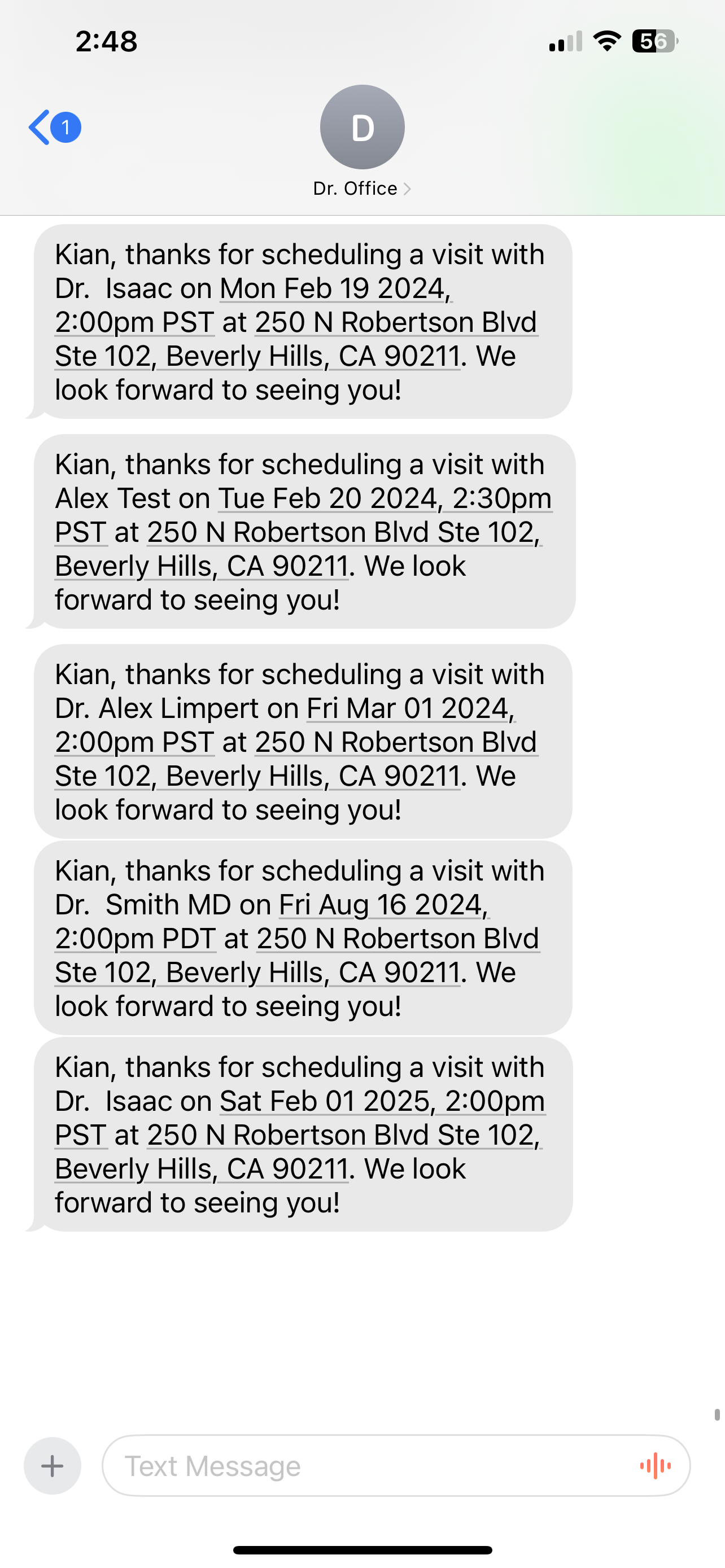
For instance, if an Instant Booking Trigger is set to trigger 15 minutes after appointments are created, then any appointments that are created for the patient in the same Practice within that 15-minute offset window will be merged into one message, regardless of whether the appointments are scheduled for the same day or not.
NOTE: The clock resets for every appointment created within the offset window. For example, let's use an Instant Booking Trigger that is set to send messages 15-minutes after appointments are created. If appointments for a patient are created at 9:00 AM, 9:12 AM, and 9:14 AM, the Merged Message will be sent at around 9:29 AM. If a fourth appointment is created for the same patient at 9:17. AM, that Merged Message will instead be sent at around 9:32 AM. If a fifth appointment is then created for the same patient at 9:32 AM, that appointment will not be part of the initial Merged Message delivered to the patient. 
Instant Booking Trigger (Not Merged) |
Instant Booking Trigger (Merged) |
 |
 |
Expected Behaviors of Merged Messages
Does Merged Messaging work across Practices?
No. Merged Messaging is Practice-specific.
Which appointment details are used in the Smart Phrases?
Event Smart Phrases populate with the first scheduled appointment’s details. For example, if there are two appointments at 10:00 am and 2:00 pm, the Smart Phrase {eventDateAtTimeShort} will display the 10:00 am appointment info.
When can’t I merge messages?
Triggers that are configured to immediately send messages (e.g. 0 minutes after appointment is created) may not be able to be merged. Artera scans and sends messages within five-minute windows. If the two messages will not align in this same five-minute window, merging will not occur. Consider setting your Trigger to send 15 minutes after a specified event.
When messages are merged that use the {eventConfirmText} Smart Phrase, the patient's selection will automatically apply to all appointments related to that merged message. So, if the patient replies "Y" to confirm their upcoming appointments at 8:00 and 9:00 am, both appointments are automatically confirmed (alternatively, if the patient messages in N, both appointments will be canceled). If you would like the patient to be able to confirm or cancel the appointments independently, do not merge messages containing the {eventConfirmText} Smart Phrase.
Which line sends the Merged Message?
If a set of appointment reminders merge in the same Practice but are associated with different Locations and lines, the Merged Message will be sent from the phone number associated with the earlier appointment.
When will the Merged Message send?
If the Trigger is set to be delivered one day before an appointment (e.g. 1D Confirmed), it will be sent one day prior to the first appointment’s start time. If a Trigger is configured to be delivered one day after an appointment (e.g. Post-Visit Thank You), it will be sent one day after the final appointment time.
Merged Messages are not impacted by multiple patients using the same phone number. Messages are merged based on an individual patient’s information (MRN/Patient ID) rather than their contact information. If two patients each have one appointment on the same day and share a phone number, that phone number will receive two automated texts.
What is the expected behavior of having Merged Messages for 1D Unconfirmed and 1D Confirmed Triggers?
Patients whose appointment is in a status of "unconfirmed" will receive the 1D Unconfirmed Merged Message. If the patient confirms their appointments, they will receive a 1D Confirmed Trigger message; however, the appointment date and time will not reflect the details of the first appointment of the day.
For example, if Sophia has three appointments (11:00 am, 11:30 am, and 12:00 pm) and responds to the 1D Unconfirmed Merged Message by confirming at 11:10 am, the next message Sophia qualifies to receive is the 1D Confirmed Merged Message at 11:30 am. This is because the 11:00 am appointment was not confirmed 24 hours before the appointment time and cannot be included as part of the 1D Confirmed Merged Message. To prevent confusion, customers generally do not use Merged Messaging with 1D Confirmed Triggers.
Leading Practices for Using Merged Messages
Using the {eventConfirmLink} Smart Phrase allows the patient to review the date, time, and location for each of the appointments. However, the patient can only confirm or cancel all appointments displayed in the link. If you do not want to use the link, you can request in the message that a patient calls or texts your office to reschedule or cancel an individual appointment.
As a patient takes action on all appointments, the appointment status in Artera will change and an Event Message will be added to their Patient Channel.
In Merged Messages, Smart Phrases will only refer to one appointment. If you want to refer to multiple or all appointments specifically in a text, you should not use Merged Messages for that Trigger.