Icons and Color Codes in Artera
- Get Started
- Troubleshooting and FAQ
- Release Notes
- AI Agents
- Patient Channel
- Triggers
- Technical Specifications
- Patient Facesheet
- Insights & Analytics
- Conversation Flows
- Campaigns
- SMS Basics
- Inbox
- Lines & Resources Requests
- Lines, Events, Resources
- Referrals
- Add-Ons
- Users and Groups
- Platform Settings and Configuration
- Self-Rescheduling
- Recalls
- Artera Harmony Federal Edition
- Marketplace
Table of Contents
Navigation BarCollapse or Expand the Navigation BarHomepage Inbox CampaignsAutomationsPatientsInsightsHelpSettingsUser ProfileManual Messaging ToolsPatient Verification IconsTriggers IconsThis article provides an index of the various icons and color codes used throughout Artera as indicators.
Navigation Bar
The navigation bar is on the left-hand side of the platform. Each tab in the bar links to a new view in Artera.

Collapse or Expand the Navigation Bar
You can collapse the navigation bar so it shows only its icons. This gives users more room on smaller screens.
To collapse the navigation bar:
-
Select the Collapse sidebar icon near the Artera logo, at the top of the navigation bar.

To expand the navigation bar:
-
Select the Expand sidebar tab on the right edge of the collapsed navigation bar, near the Artera logo.

When the navigation bar is collapsed:
- Only icons display. Hover over an icon to see the tab's name. Notification badges still display.
-
In the Inbox, the navigation bar shows icons for All Messages, Scheduled, Activity and your saved views. To see the My Views heading, expand the navigation bar.

NOTE: Artera saves your choice for each browser and device. On a different computer or browser, the navigation bar remains expanded until collapsed. On very small screens, Artera uses its small-screen menu and this setting does not apply.
Homepage
The Homepage serves as a user’s command center, designed to boost staff efficiency and enhance the patient experience by utilizing your Artera data to identify opportunities for improvement. It offers key insights that help users stay on top of unresolved messages, prioritize critical conversations, and optimize performance. Click here to learn about the Homepage.
 |
 |
Inbox
The Artera Inbox is the primary workspace designed to centralize patient communication across every Practice you have access to. This enterprise-centric layout eliminates the need to toggle between different Practices by providing a comprehensive, single-pane view of all patient interactions. Within the Inbox, you can navigate between three specialized views to manage your workflow, the "All Messages", "Scheduled", and "Activity" views.

Campaigns
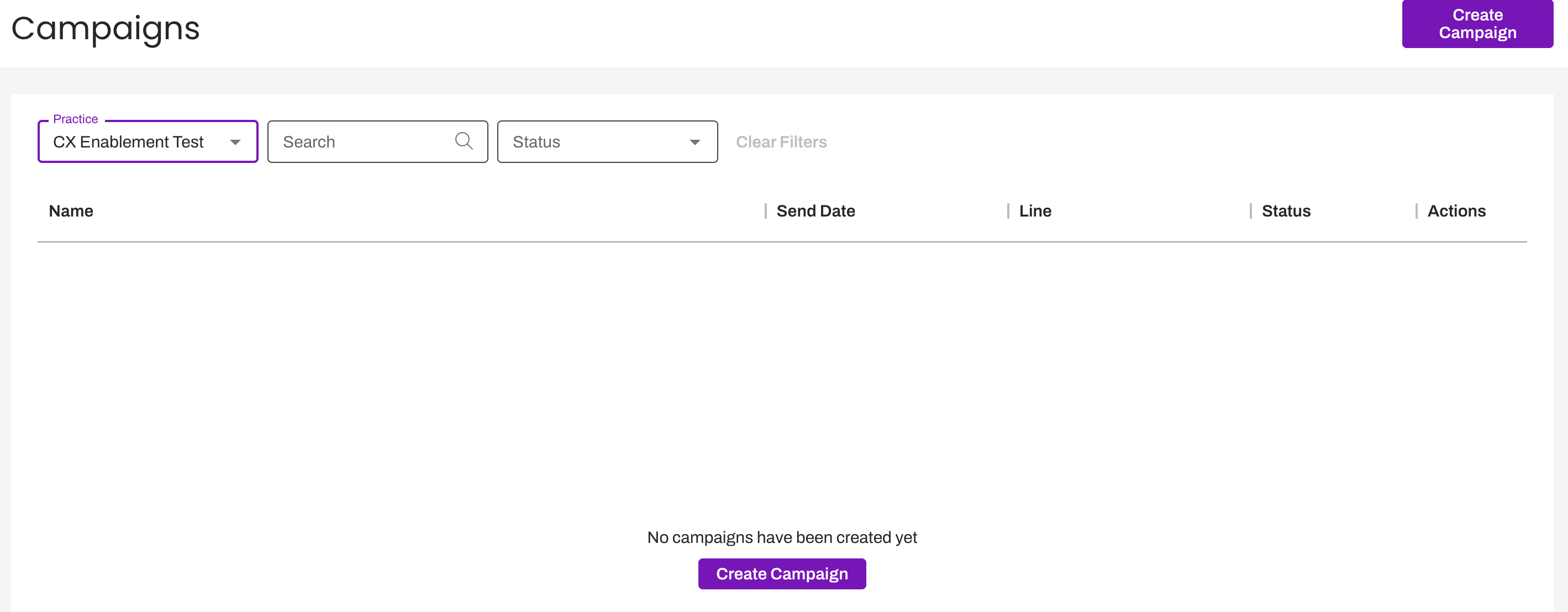
Select Campaigns to be directed to your Practice's Campaigns page. Click here to learn more.
 |
 |
Automations
Automations include Conversation Flows and Triggers.
 Patients
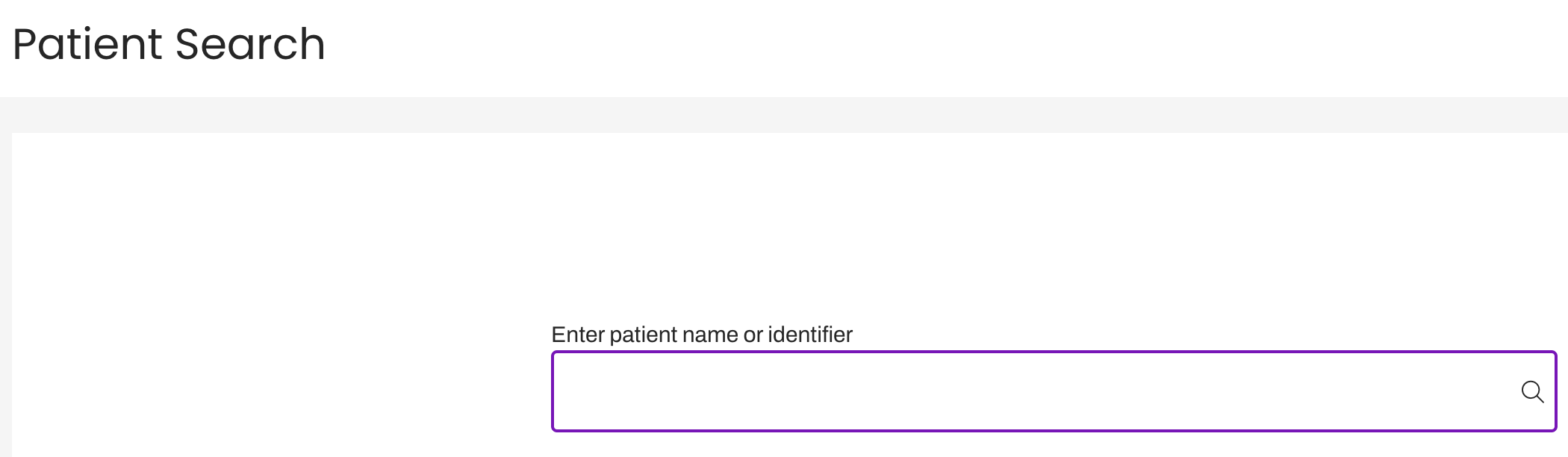
The Patients Area provides visibility into patient communication history and communication preferences, allowing users to quickly troubleshoot issues and providing valuable insights into how to optimize an organization’s patient messaging strategy.
Click here to learn more.
 |
 |
Insights
Select Insights to access your Artera analytics from within the platform. Click here to learn more about the available reporting in Artera.

Help
The Help option displayed on the lower half of the navigation bar links to Artera's Customer Resource Center. This site includes training guides, Knowledge Base articles, and our support case submission form. Help also links out to the Knowledge Base or Artera Academy.

Settings
Settings contains configuration options for Artera. Depending on your access level, you may be able to access both Practice and Enterprise Settings. Learn more about Artera settings.

User Profile
Select My Profile to view your current login details, including your identity, the Artera Enterprise, and the environment you are accessing. This menu also lets you manage your notification settings, choose a light or dark appearance, or securely log out of the platform. Click here to learn more.

Manual Messaging Tools
While in the Patient Channel, you will see icons below the communication box to send a manual message. These are all tools that can be used to enhance messages to patients. Click here to learn more about Manual Messaging.
Secure or Unsecure
Selecting the lock icon will toggle between a Secure and Unsecured message. A closed lock indicates that the message is secure, while an open lock indicates the message is unsecured. Users can also insert two exclamation marks, "!!," before their message to switch the message from secure to unsecured.
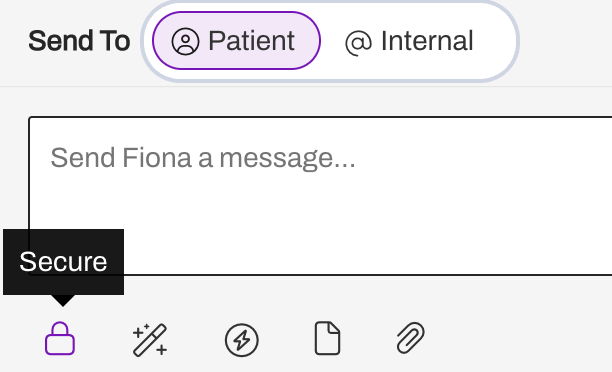
A secure message requires a patient to login to the Secure Messaging Portal view the message. This ensures that PHI and other sensitive information is protected. By default, all messages sent in Artera are secure. An unsecured message will appear as a plain text message to the patient.
Smart Phrases

Artera highlights each Smart Phrase in the message field with a color that tells you whether it will populate:
Color |
What it means |
Green |
Artera recognizes the Smart Phrase and will replace it with real data. |
|
Yellow
|
Artera does not recognize the Smart Phrase. It sends as literal text, brackets included. Be sure to fix this Smart Phrase before saving or sending a message. |


Quick Responses
 Attach File
The paper clip icon allows users to attach a file to a message. Learn more about sending rich media attachments.

Staff AI Co-Pilot
Use the AI button to create engaging messages to patients, translate messages, and improve overall communication efficiency. Click here to learn about Staff ai Co-Pilot.
NOTE: Staff AI Co-Pilot is a Harmony solution and this feature is only available to Harmony customers.

Patient Verification Icons
Within Artera, there are Verified and Unverified patients. There are a few limitations that exist with Unverified patients, which you can learn about here.
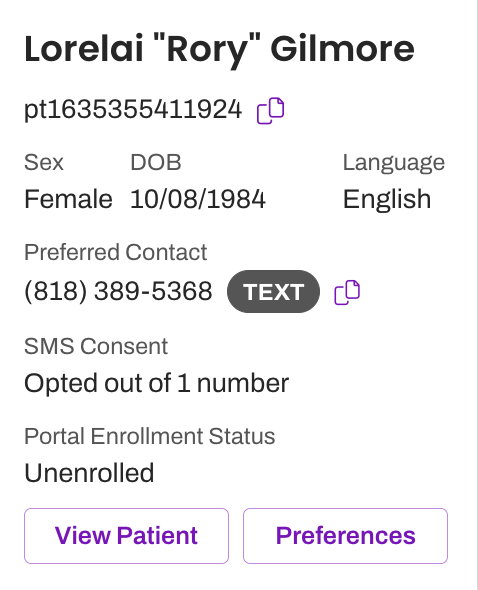
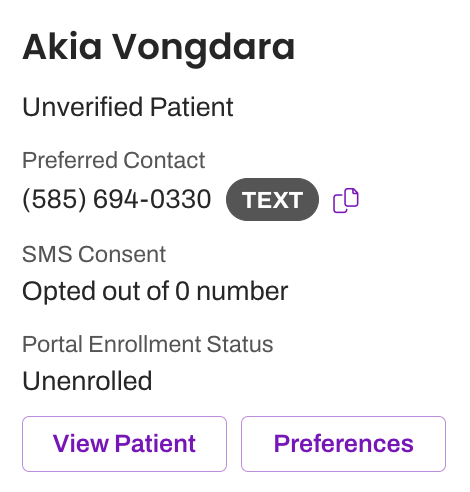
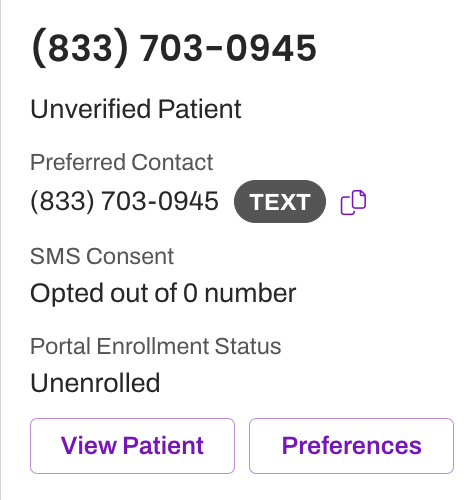
How does a patient get verified?
There are a few ways that verified patients enter into your Artera Practice:
During implementation, the patient was part of a Future Appointment Upload to Artera as part of the go-live process.
After go-live, an appointment is scheduled for the patient in the EMR and then sent to Artera through the HL7 interface.
Triggers Icons
The Triggers page, accessible to Enterprise Users, features icons in every row to indicate the communication methods available for sending the Trigger and whether the Trigger's text message will be sent secured or unsecured.
- Triggers with text message scripts are identified by a message icon under the Method column.
- Triggers with phone call scripts are identified by a phone icon under the Method column.
-
Triggers with email scripts are identified by an envelope icon under the Method column.
