How to Add a New Shell Practice to an Existing Enterprise
- Get Started
- Troubleshooting and FAQ
- Release Notes
- AI Agents
- Patient Channel
- Triggers
- Technical Specifications
- Patient Facesheet
- Insights & Analytics
- Conversation Flows
- Campaigns
- SMS Basics
- Inbox
- Lines & Resources Requests
- Lines, Events, Resources
- Referrals
- Add-Ons
- Users and Groups
- Platform Settings and Configuration
- Self-Rescheduling
- Recalls
- Artera Harmony Federal Edition
- Marketplace
A Shell Practice is used to facilitate large-scale outreach via Campaigns or for specific specialty use-cases. Shell Practices typically contain one line and users but generally do not have mapped Resources (Locations, Providers). If you are looking to build a Multi-Department or Single-Department Practice, click here.
To add a new Shell Practice, complete the following steps:
- Create the New Practice in your Demo and Production Artera environments
- Add line(s)
-
Submit new Lines & Resources requests
- Sign Letter of Authorization (LoA)
-
Configure Practice Settings
- Add users to the Practice
- Review Practice Settings
- Review Practice Holiday Hours
Review the steps below to learn more about the process for adding a new Shell Practice to your existing Artera Enterprise:
.png)
Step 1: Create the Practice in Demo and Production
Demo
In your Artera Demo environment, navigate to Settings > Enterprise Settings > Practices.
NOTE: Only Enterprise Users can create new Practices.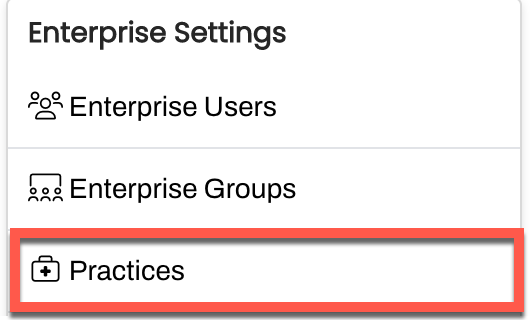
Select + Add Practice.
Enter the Name, Timezone, and Specialties (optional). Then, select Save Practice. Repeat this process in your Artera Production environment.

Step 2: Create New Line(s)
Add the line(s) to the Practice prior to the Artera Support team enabling the line. Click here to learn how to add new lines.
Important
If you want Artera to purchase a new line(s) instead of text-enabling an existing number, at no cost to you, then you do not need to create the new line(s) in Artera. Our Support Team will add the newly purchased line(s) to Artera for you.
Step 3: Submit new Lines and Resources Request to Artera Support
Create a new Lines and Resources Request for the Shell Practice. Submit a request to Add a new phone line only and another Lines and Resources Request to Provide a Patient Load for a Campaign if you are creating the new Shell Practice to send Campaigns. You will have the option to text-enable a landline that you own or have Artera purchase a new number, at no cost to you. Read more about Adding a New Phone Line to an Artera Practice.
3a. Sign Letter of Authorization (LOA)
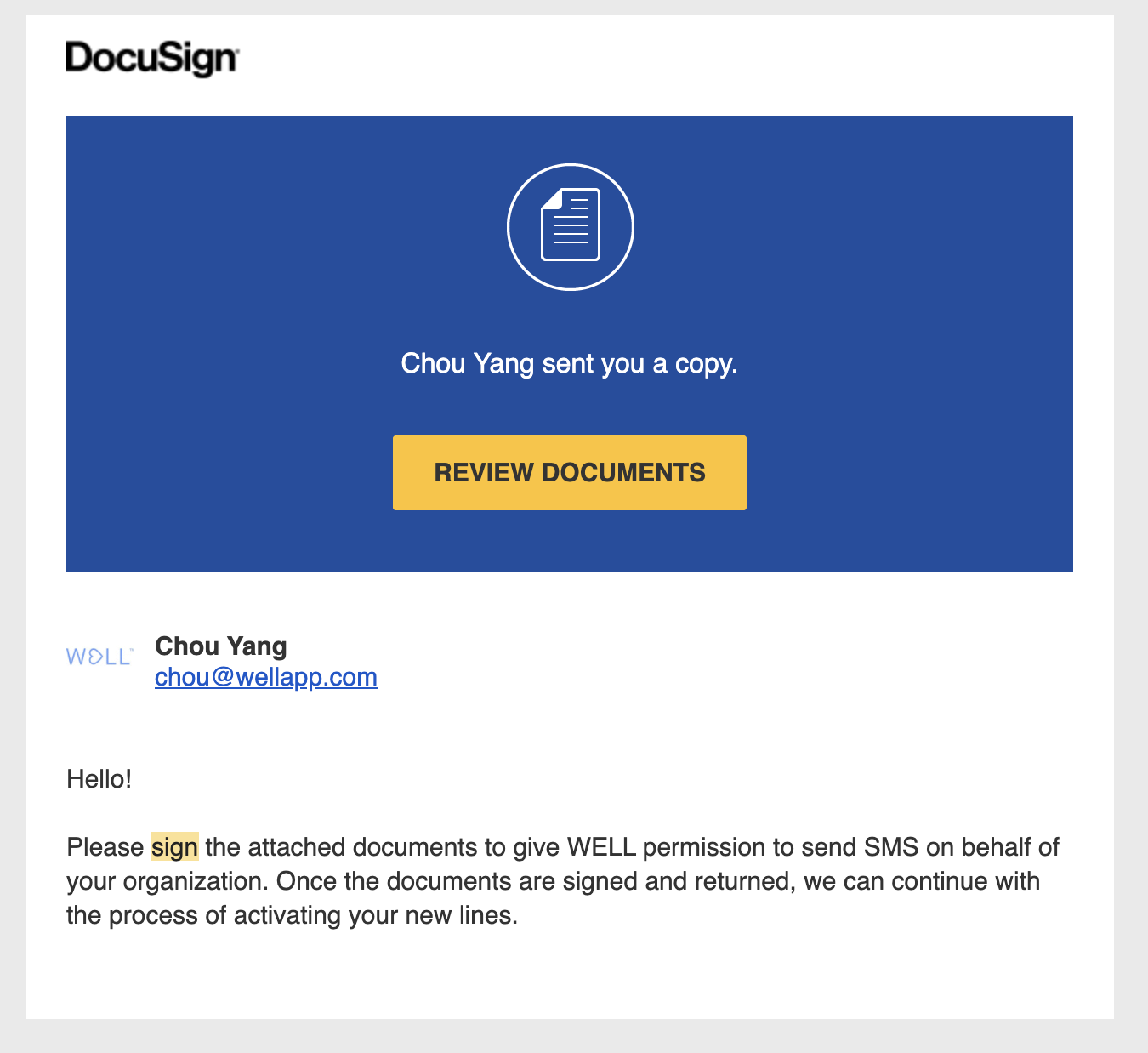
You will receive an email from the Artera Support Team via DocuSign with a Hosted SMS Letter of Authorization that needs to be signed before Artera can text-enable the requested numbers. It can take up to 2 weeks for the requested numbers to be text-enabled.
Step 4: Configure Practice Settings
4a. Add Users to the Practice
4b. Review Practice Settings
Review and update your Practice Settings, as needed.
NOTE: Your settings will vary depending on whether you are implementing Conversational Messaging at this Practice.
Conversational Messaging Recommendations
Configure your Practice Hours and After-Hours Auto Response. If you have more than one line and the lines have different operational hours, you can configure this information at the line-level instead.
One-Way Messaging Recommendations
Configure your Practice Settings to meet your organization's needs for Appointment Reminders only.
Set up your Practice Setting Hours to Sunday-Saturday Open from 1:00 AM - 1:01 AM
Set up your After-Hours Auto-Response: "Hi this is {practiceName}, we are not actively monitoring texts at this time. Please call us at {wellPhone} for assistance. Thank you!"
Add additional languages, if supported by your integration.
4c. Review Practice Holiday Hours
Build Practice Holiday Hours if this Practice follows different Holiday Hours than what was set up at the Enterprise-level.
Delete