Phone Lines
- Get Started
- Troubleshooting and FAQ
- Release Notes
- AI Agents
- Patient Channel
- Triggers
- Technical Specifications
- Patient Facesheet
- Insights & Analytics
- Conversation Flows
- Campaigns
- SMS Basics
- Inbox
- Lines & Resources Requests
- Lines, Events, Resources
- Referrals
- Add-Ons
- Users and Groups
- Platform Settings and Configuration
- Self-Rescheduling
- Recalls
- Artera Harmony Federal Edition
- Marketplace
Table of Contents
Line Settings OverviewAdd a New LineEdit an Existing LineEdit Line ProcessAdding Line HolidaysExcluding a Line from a Practice or Enterprise HolidayLine Holidays and TriggersAssociating Staff Users to LinesUpdate a Line NumberDeactivated LinesPhone lines are text-enabled phone numbers used to message patients in Artera. Each Artera Practice contains one or more lines.
Line Settings Overview
You can customize the following items for each line:
- Line Display Name: The name of the phone line. This name populates the {lineName} Smart Phrase when used in a message.
- Outbound Phone: The phone number of the line. This is the phone number used to send messages or make calls to patients.
- Associated Resources: Allocate specific Resources (Locations, Providers, Device, or General) to lines to best fit your needs. Most customers associate lines with Locations.
- Line Hours: Establish hours for the line if the line's operating hours are different from the Practice Hours that the line is a part of.
- After-Hours Auto-Response: A customized, automated response sent to people who message the line outside of its hours. The After-Hours Auto-Response will only send if the inbound message is greater than 30 characters.
Line Hours and After-Hours Auto-Responses override Practice Hours and Practice Settings, meaning different lines within the same Practice can have distinct hours and After-Hours Auto-Responses.
Add a New Line
Setting up a new line typically takes the Artera team about two weeks. When submitting your request, you can choose to have Artera provide a new number at no extra cost, or we can text-enable an existing landline you already own. To get started, please follow these instructions.
Edit an Existing Line
You may need to update an existing line for several reasons. The most common edits include:
- Adding a new Resource
- Updating the Line Name
- Updating the Line Hours
- Updating After-Hours Auto Response
Edit Line Process
Let's review how to edit a line:
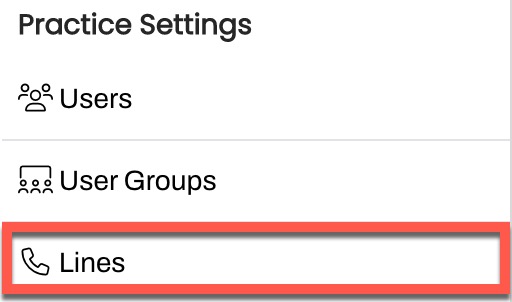
- Navigate to Settings > Practice Settings > Lines. Ensure that you are navigated to the correct Practice.
-
Locate the line to edit and select its (...) Actions menu. Then, choose Edit Line. You can search for lines by name, phone number, or associated Resource.
NOTE: The Resource's External ID, which originates from your EMR, is displayed near the Resource tied to the line.
NOTE: Check the Lines page for notifications regarding unassigned Resources. To guarantee message delivery to patients, ensure all relevant Resources are linked to a line.

-
In the Line Details section, update the Line Display Name, if needed. Remember, this is the name that populates the {lineName} Smart Phrase when used in an outbound message.
NOTE: The Outbound Phone field will be locked while a line is activated. To make changes to this field, the line must be deactivated; otherwise, the field will appear grayed out.
-
In the Associated Resources section, use the Provider, Location, Device, or General drop-down menus to update which Resource(s) can send messages from this line.
NOTE: While most customers associate lines specifically with Location Resources, you should select the Resource type that best fits your unique Artera configuration.
-
In the Line Hours section, you can optionally set specific hours for this line. Keep in mind that Line Hours override the Practice Hours defined in your Practice Settings.
NOTE: Line Hours do not override Practice Hours for Campaigns as Line Hours do not apply to Campaigns. Click here to learn more.- In the Days drop-down, select all days that share the same schedule (they do not need to be consecutive). Once selected, set the Open and Close Time for that group.
-
Each day can only have a single scheduled block. For example, if you try to set separate morning and afternoon shifts (e.g., 8:00 am-12:00 pm and 1:00 pm-5:00 pm), Artera will view the gap as 'closed' time. Consequently, your After-Hours Auto-Response would immediately trigger at 12:00 PM.

-
Use the + Add Schedule link to include additional daily hours.

-
Optionally, set a custom After-Hours Auto-Response. This message will send to people who message the line outside of its hours. Leverage the Smart Phrase wand to include Smart Phrases, as needed. This message overrides the After-Hours Auto-Response set in your Practice Settings.
NOTE: To set an After-Hours Auto-Response, Line Hours must first be configured.
-
Use the EN button to search for and add translations.

-
Use the EN button to search for and add translations.
Adding Line Holidays
If the line follows different Holiday Hours than the Practice or Enterprise, you can establish line-specific Holidays.
-
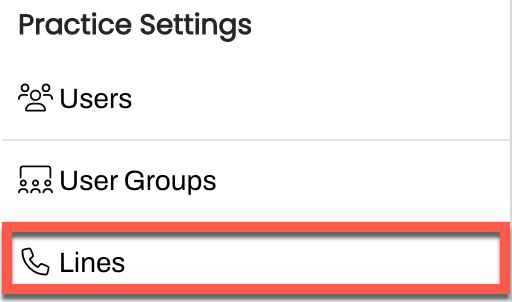
Navigate to Settings > Practice Settings > Lines. Ensure that you are navigated to the correct Practice.
-
Use the line's (...) Actions menu to select View Line Holidays.

-
The Line Holidays page displays all existing Holiday Hours in chronological order for the line, Practice, and Enterprise. You can search for line holidays by Holiday Name and Out of Office Message.

- Select + Add Holiday.
-
Enter in the Holiday Name, Start and End Date, Start and End Time, and the Holiday Out of Office Message. You can add translations here, if necessary. If this is a recurring holiday for the line, meaning the holiday falls on the same date each year, select "Yes" for the Recurring Holiday field. When ready, select Save Holiday.

Excluding a Line from a Practice or Enterprise Holiday
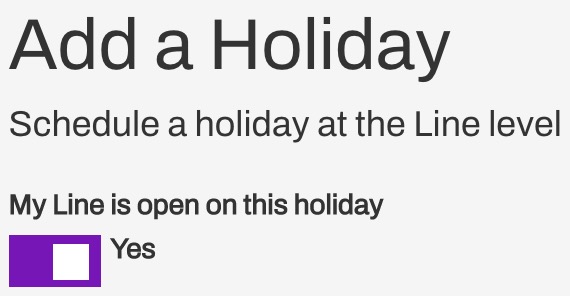
If there is a holiday set at the Practice or Enterprise that your line will not follow, you can create a Holiday using the steps above and indicate that the line is "open" using the My Line is open on this holiday toggle. This will override the holiday for that Line.
Line Holidays and Triggers
Unlike the impact that Practice and Enterprise Holiday Hours have on Triggers, line Holiday Hours do not reschedule Triggers. If a patient is scheduled to receive an automated message on a line-scheduled holiday, it will be sent to them. To prevent Triggers from being sent on holidays, schedule them at the Practice or Enterprise. Click here to learn more.
Associating Staff Users to Lines
For Practices with multiple lines, you can assign specific lines to different Staff Users. This allows the user to only view and send messages from that line. Click here to learn how.
Update a Line Number
To update an outbound number that has already been enabled, submit a case to Artera Support requesting the change.
NOTE: Lines cannot be deleted once added to Artera. However, they can be deactivated by being reverted to a "pending" status.
Deactivated Lines
Lines that have not been used to send messages or phone calls in the last three months will be automatically deactivated by Artera. To reactivate a deactivated text-enabled landline, submit a Lines & Resources Request to the Artera Support team. If a purchased line is deactivated, Artera can attempt to reactivate it but cannot guarantee that we can procure the same phone number.